Installing and Using ArcDPS
ArcDPS Installation & Usage
ArcDPS is a free GW2 damage meter. For a standalone installation, download its DLL from the developer and place it in the game folder.
How can I measure my DPS?
GW2 has no built-in DPS meter. ArcDPS, a free community tool developed by deltaconnected, displays your damage output during combat.
What ArcDPS does
- Live DPS: see your damage per second
- Party comparisons: compare damage output across the group
- Combat logs: save fights for later analysis
ArcDPS helps you review damage and boon uptime in fractals and raids. It is not an official ArenaNet tool, and its developer does not guarantee its use or compatibility.
Installation
These steps cover a standalone manual installation. If you already use Nexus, install ArcDPS from its library. Do not overwrite one tool's d3d11.dll with the other.
Step 1: Download
Visit the ArcDPS download page and download d3d11.dll.
Step 2: Put the DLL in the game folder
Close the game, then place d3d11.dll in the folder containing Gw2-64.exe.
- Example standalone path:
C:\Program Files\Guild Wars 2\ - Example Steam path:
C:\Program Files (x86)\Steam\steamapps\common\Guild Wars 2\
Your installation path may differ. Check that Gw2-64.exe is in the same folder.
Step 3: Launch the game
Launch GW2, then press Alt + Shift + T to check that the ArcDPS options window opens.
d3d11.dll file from the game folder. Settings and existing logs remain. If installed through Nexus, remove it through Nexus.Basic use
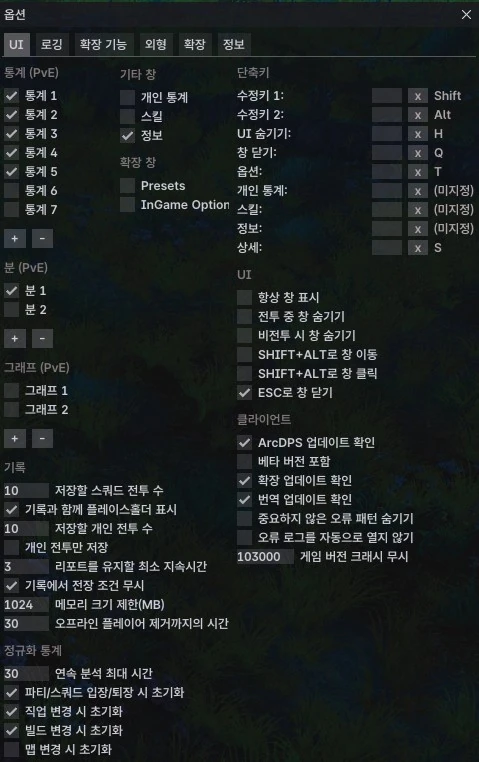
Two useful shortcuts
| Shortcut | Action |
|---|---|
| Alt + Shift + T | Open or close ArcDPS options |
| Alt + Shift + H | Show or hide ArcDPS UI |
These two shortcuts are enough to get started.
Stats: Party DPS at a glance
Stats displays combat statistics for you and your party. Older guides may call it Area Stats.
To open it:
- Press Alt + Shift + T to open options.
- Enable the Stats window.
- A damage table appears.
The defaults are enough to start. You can adjust the display later:
Damage display format
In the damage statistics Format setting, @5, @6 (@2, @3) displays the values below.
@5: target DPS@6: share of target damage@2: cleave DPS@3: share of cleave damage
Using combat logs
ArcDPS can save combat records to files. Upload them to an analysis site to review a fight in detail.
Enable logging
- Open options with Alt + Shift + T.
- Go to Logging.
- Check save boss logs.
Logs are saved after fights with supported bosses. Check Logging directory under Logging for the save location.
- Default location:
Documents\Guild Wars 2\addons\arcdps\arcdps.cbtlogs\ - File format:
.evtc
Analyze a fight with dps.report
Upload an .evtc file to dps.report to explore:
- DPS graphs: damage output over the course of the fight
- Boon uptime: coverage of Quickness, Alacrity, and other boons
- Skill use: which skills you used and how often
- Mechanics: encounter events and how players handled them
When practicing raids or fractal challenge modes, logs can help you locate drops in damage output.
Updates and troubleshooting
Updating
A game patch can temporarily break ArcDPS. Check the developer's site for a compatible version.
Updating follows the installation process:
- Download the latest
d3d11.dllfrom the developer. - Close the game and replace the existing ArcDPS file.
- Launch the game again.
Nexus can update the addons it manages, including ArcDPS. Consider it if you prefer automatic updates.
If the game crashes
If crashes start after installing ArcDPS:
- Close the game, temporarily remove ArcDPS and its extensions, then try launching again. For a Nexus installation, disable them in Nexus.
- Launch the game.
- If it works, check compatibility between ArcDPS, its extensions, and other overlays.
- Download the latest version from the developer's site.
If the latest version still has problems, add extensions back one at a time to narrow down the cause. Check arcdps.log and arcdps_lastcrash.log in addons/arcdps.
Extensions
The steps below assume a standalone manual ArcDPS installation. Put each extension's .dll in ArcDPS's installation location. If you use a manager, check the location it uses.
Unofficial Extras: Data for other plugins
Unofficial Extras is a supporting plugin that supplies squad, chat, and other data not provided by ArcDPS itself. Install it when a plugin you use requires it.
It also provides these features:
- Squad information: shares party and squad members' professions and specializations with other addons
- Chat events: supplies chat data to other plugins
- Mouse locking: keeps the cursor inside the game while rotating the camera with the right mouse button
- Keybind profiles: automatically switches bindings by profession or elite specialization
Download: get arcdps_unofficial_extras.dll from GitHub Releases and place it beside Gw2-64.exe.
Healing Stats: Measure healing output
Add Healing Stats to examine your healing output by target and skill. To view another player's healing through live sharing, that player also needs the extension and sharing enabled.
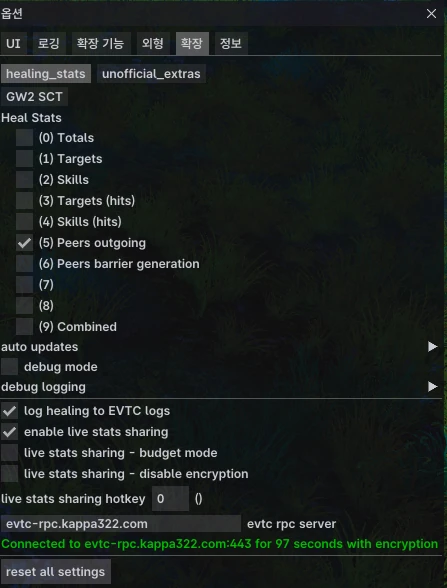
Main features:
- Healing by target: see which allies received your healing
- Healing by skill: compare healing from different skills
- Up to 10 windows: filter by subgroup, exclude minions, and more
- EVTC logging: include healing data in combat logs for analysis on dps.report
Download: get arcdps_healing_stats.dll from GitHub Releases and place it beside Gw2-64.exe.
Other extensions
| Plugin | Purpose | When it helps |
|---|---|---|
| Boon Table | Shows squad boon uptime in a table | Checking Quickness and Alacrity uptime |
| Mechanics Log | Displays encounter mechanics in real time | Reviewing mechanic events during raids |
Extensions differ in their supported features and required files. Check each one's releases and installation instructions.
If you just installed ArcDPS
- ArcDPS is a tool for understanding and improving your own play. Do not use it to harass others about their damage.
- Start with one Stats window. Learn the other settings later.
- You can hide the interface in open world with Alt + Shift + H.
- If the game will not launch after a patch, disable ArcDPS and its extensions, then try again.